Overview
ViolinPractice is an innovative Android application designed to help violinists learn and practice
their instrument through an interactive, visual interface. The app provides real-time feedback,
multiple playing modes, and built-in songs to enhance your practice sessions.
Getting Started
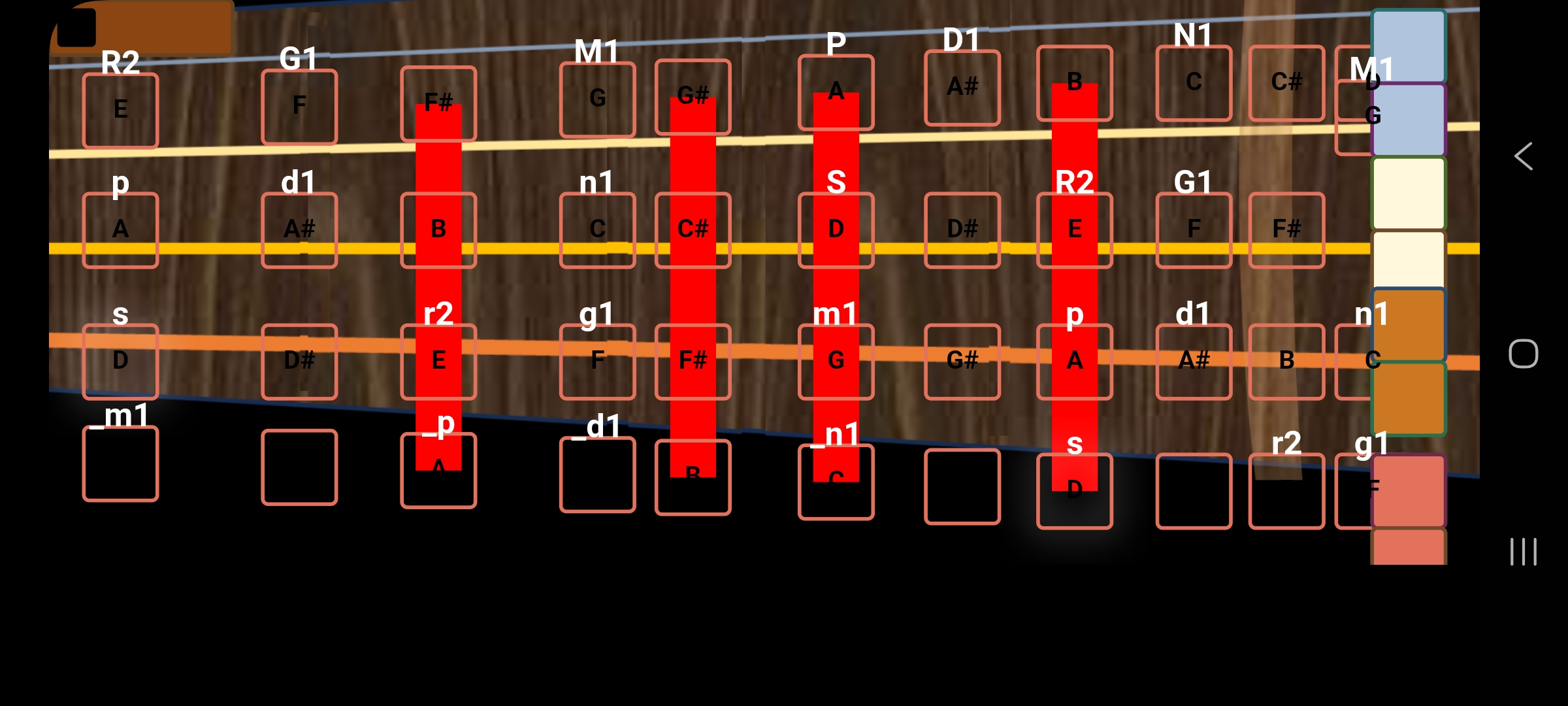
Figure 1: Main interface showing the violin fingerboard and control menus
When you first launch the app, you'll see the main interface with a visual representation of the
violin fingerboard. The right side of the screen contains various control menus that allow you to
customize your practice experience.
Control Menus
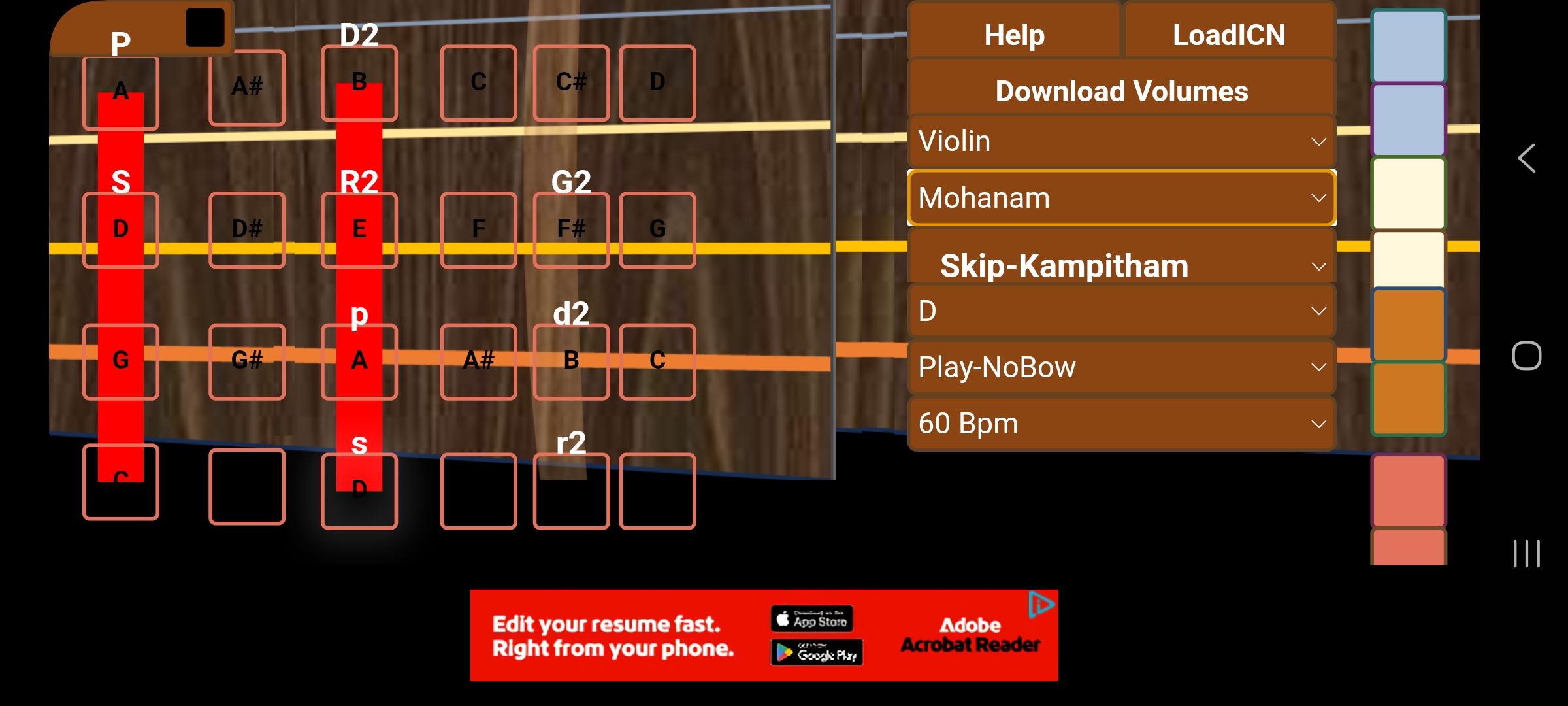
Figure 2: Control menus showing LoadICN and Help buttons in the Menus section
The app features several control menus positioned on the right side of the screen. These menus become
visible when you interact with the fingerboard, particularly when moving between different positions.
Each menu serves a specific purpose in customizing your practice session.
Song Mode Operations
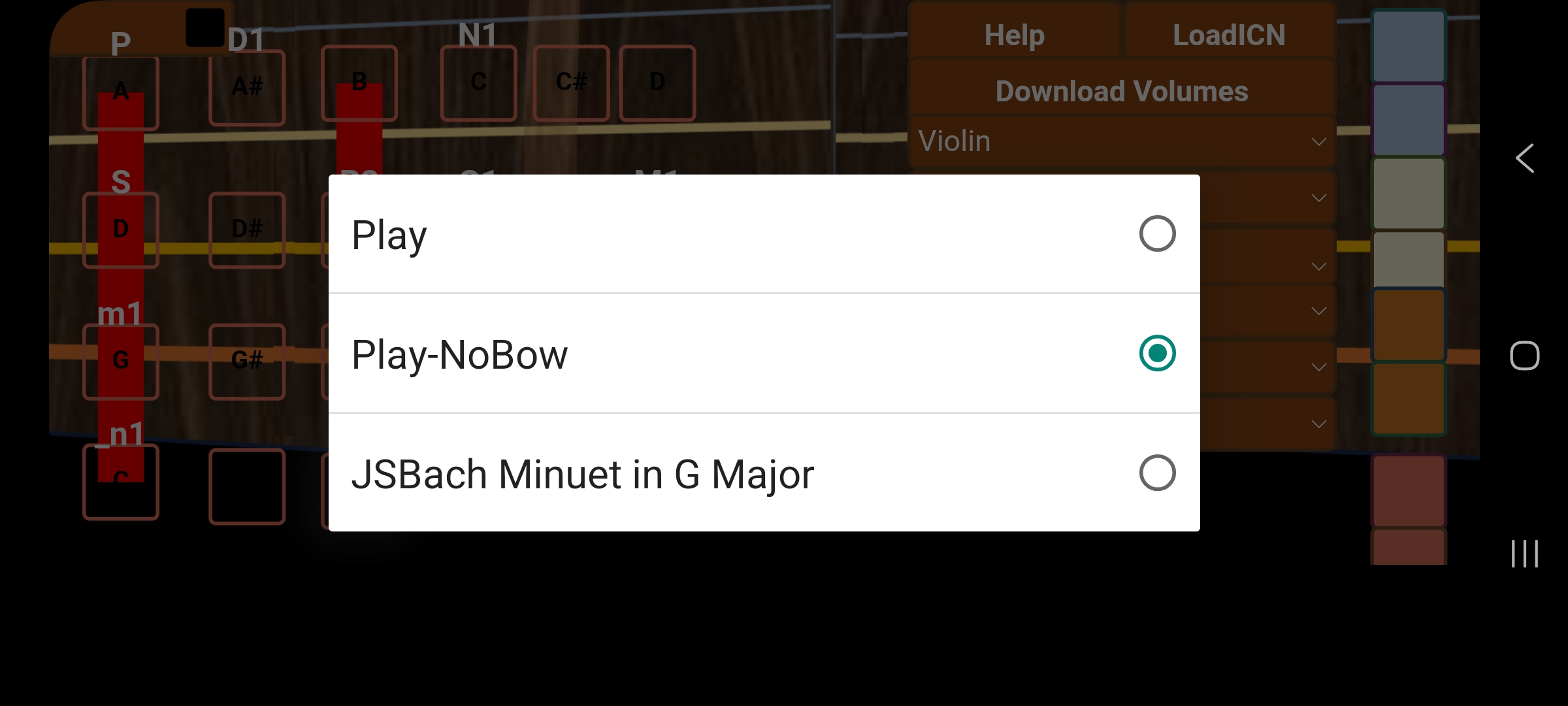
Figure 3: SongMode dropdown showing available practice modes and songs
Loading Custom Songs (LoadICN Feature)
Custom ICN File Support
The app now supports loading custom song files in .icn format:
- Place your .icn song file in the Downloads directory on your device
- Tap the "Load .icn" button located below the Help button in the Menus section
- The file picker will open, showing all .icn files in your Downloads folder
- Select the file you want to load
- The song will be automatically added to the SongMode dropdown
- Select the song from SongMode to start practicing
Note: Custom ICN files support filenames with spaces. The display name in SongMode
will show the filename without the .icn extension, making it easy to identify your custom songs.
Playing Modes
Play Mode
Standard interactive mode where you need to touch the strings (A/B) to play notes.
This mode requires proper bow technique simulation.
Play-NoBow Mode
Simplified mode that allows you to play notes without requiring string touch.
Perfect for beginners or when focusing on finger placement.
Built-in Songs
JSBach Minuet in G Major
A classic piece by J.S. Bach, perfect for intermediate practice. The app will guide
you through the notes and timing. More titles will be offered soon.
Note: When you finish playing JSBach Minuet in G Major,
the app automatically resets SongMode to "Play-NoBow" for your next practice session.
How to Use
Basic Practice
- Launch the app and familiarize yourself with the fingerboard interface
- Select your preferred VoiceMode (Voice or Violin)
- Choose a Raga and BaseScale that matches your practice goals
- Select "Play-NoBow" mode for easier practice, or "Play" for more realistic simulation
- Touch the fingerboard positions to play notes
- In "Play" mode, also touch the string areas (A/B) to simulate bowing
Practicing with Songs
- Select a song from the SongMode dropdown (e.g., "JSBach Minuet in G Major") or load a custom .icn file
- The app will display the song notes and guide you through the piece
- Use the Audio Player controls (Play, Pause, Rewind, Fast Forward, Stop) to control playback
- Follow along with the visual indicators
- Adjust tempo if needed to match your skill level
- Practice until you can play along smoothly
Position Navigation
The app supports multiple fingerboard positions. When you move between first and second positions,
the control menus become visible, allowing you to adjust settings on the fly. This feature helps
you practice shifting between positions while maintaining control over your practice environment.
Carnatic Music Support
ViolinPractice now includes comprehensive support for Carnatic music, one of the two main
classical music traditions of India. This feature allows you to explore and practice the rich
musical heritage of South Indian classical music.
Raga System
Practice with authentic Carnatic ragas including Mohanam and other traditional scales.
Each raga has its own unique melodic structure and emotional character.
Ornamentation Techniques
Learn and practice various ornamentation techniques (gamakams) that are essential to
Carnatic music. These techniques add expressiveness and authenticity to your playing.
Practice Modes
Dedicated practice modes help you master Carnatic music fundamentals, including
scale exercises and melodic patterns (varnams) that build your technique.
Custom Compositions
Load and play custom Carnatic compositions from ICN files, allowing you to practice
with your own repertoire or compositions shared by others.
Note: Carnatic music features are integrated throughout the app. Select
Carnatic ragas from the RagaDropdown menu to access these capabilities. The app supports
both interactive practice and guided playback modes for Carnatic music.
Tips for Best Results
Start Simple
- Begin with Play-NoBow mode
- Use slower tempos initially
- Focus on finger placement accuracy
Progress Gradually
- Move to Play mode when comfortable
- Increase tempo gradually
- Try different scales and ragas
Use Built-in Songs
- Start with simpler pieces
- Practice sections repeatedly
- Use tempo control to slow down difficult passages
Audio Player Controls
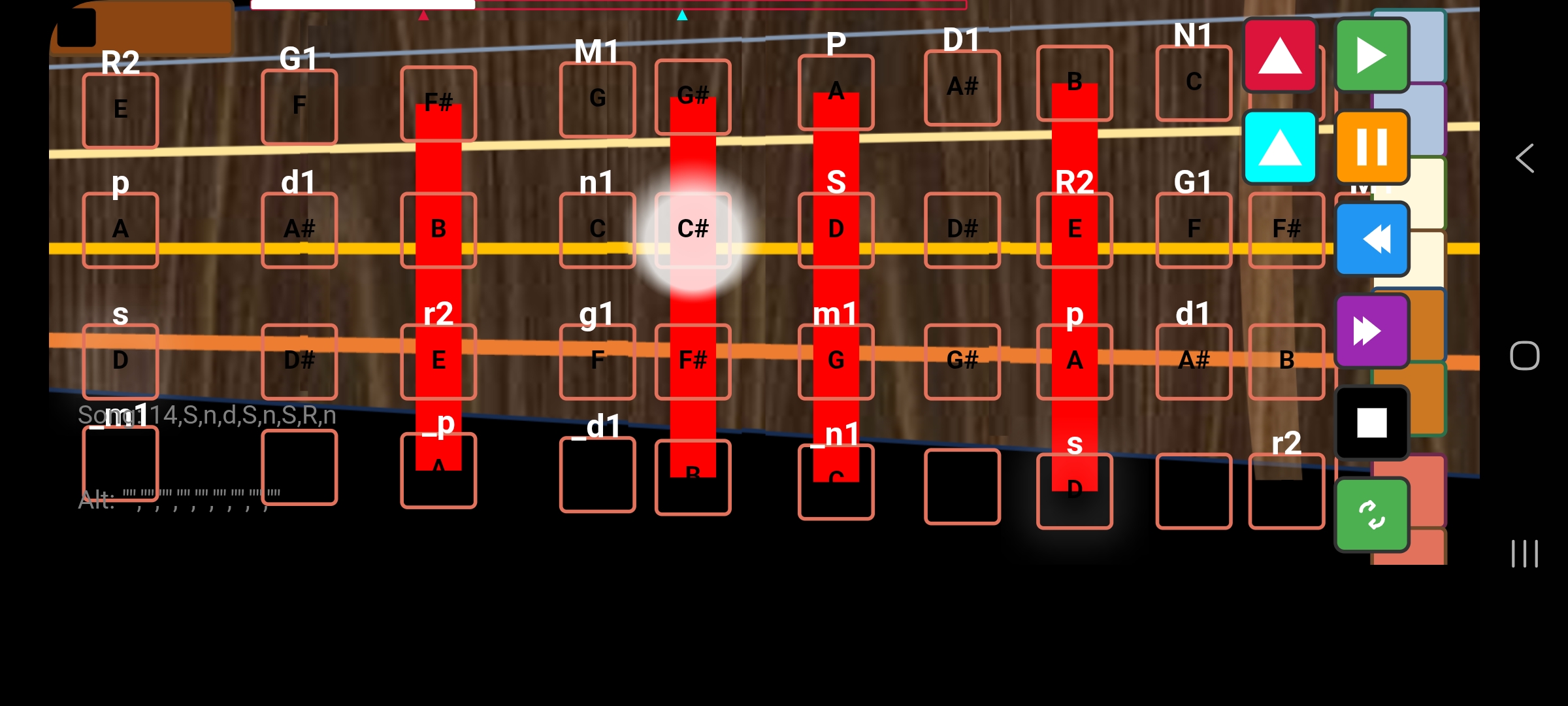
Figure 4: Audio Player controls for song playback management
When playing songs, the app provides a comprehensive Audio Player with full playback control.
The player appears on the right side of the screen and includes the following controls:
Play Button (Green)
Starts or resumes song playback. If paused, continues from the current position.
Pause Button (Orange)
Temporarily pauses playback. You can resume from the same position using the Play button.
Rewind Button (Blue)
Moves to the previous song pair/section. Useful for practicing specific passages repeatedly.
Fast Forward Button (Purple)
Skips to the next song pair/section. Allows you to jump ahead in the song.
Stop Button (Black)
Completely stops playback and abandons the current song. Performs the same cleanup as
when the song finishes naturally, including resetting SongMode to "Play-NoBow" for built-in songs.
Repeat Button (Grey/Green)
Toggles repeat mode on/off. When enabled (green), the song will loop continuously.
When disabled (grey), playback will pause at the end of the song.
Repeat Markers Feature
From-Marker and To-Marker Controls
The Audio Player includes two marker buttons that allow you to define a specific section of a song to repeat:
From-Marker Button (Crimson)
- Short Press: Sets the From-Marker to the current playback position. This marks where the repeat loop should begin.
- Long Press (500ms): Resets the From-Marker to the beginning of the song (position 0).
- Default: From-Marker is set to the beginning of the ICN file (position 0) when a file is first loaded.
To-Marker Button (Cyan)
- Short Press: Sets the To-Marker to the current playback position. This marks where the repeat loop should end.
- Long Press (500ms): Resets the To-Marker to the last song line of the ICN file.
- Default: To-Marker is set to the last song line when a file is first loaded.
How Repeat Markers Work
- When you set both From-Marker and To-Marker, the song will always repeat between these two positions, regardless of the Repeat button state.
- The progress bar shows the full song range (from beginning to end), with small upward-pointing triangles indicating the From-Marker (crimson) and To-Marker (cyan) positions below the progress bar.
- When playback reaches the To-Marker, it automatically loops back to the From-Marker and continues playing.
- Markers are saved per ICN file - each song file has its own independent set of markers that persist across app sessions.
- When you restore playback to the From-Marker position, the progress bar shows 0 through From-Marker as already played (in white).
Example Use Case: If you want to practice a specific section of a song (e.g., lines 10-25),
navigate to line 10 and press the From-Marker button, then navigate to line 25 and press the To-Marker button.
The song will now continuously loop between lines 10 and 25, allowing you to practice that section repeatedly.
Tip: Use the Rewind and Fast Forward buttons to navigate through different sections
of a song, making it easier to practice specific parts without restarting from the beginning.
Combine these with the marker buttons to create custom practice loops for challenging sections.
Technical Features
- Real-time Audio Feedback: Hear your notes as you play them
- Visual Fingerboard: Interactive SVG-based interface
- Multiple Scales: Support for various musical scales and ragas
- Carnatic Music: Full support for Carnatic music traditions and techniques
- Tempo Control: Adjustable playback speed (30 BPM and higher)
- Position Support: Practice in different fingerboard positions
- Song Library: Built-in classical pieces for practice
- Custom File Loading: Load and play custom compositions from ICN files
- Audio Player: Full playback control with Play, Pause, Rewind, Fast Forward, and Stop buttons
- Repeat Markers: Set From-Marker and To-Marker to create custom practice loops for specific song sections
- Per-File Marker Persistence: Markers are saved independently for each ICN file and persist across app sessions
- Premium Content: Additional songs available for purchase